
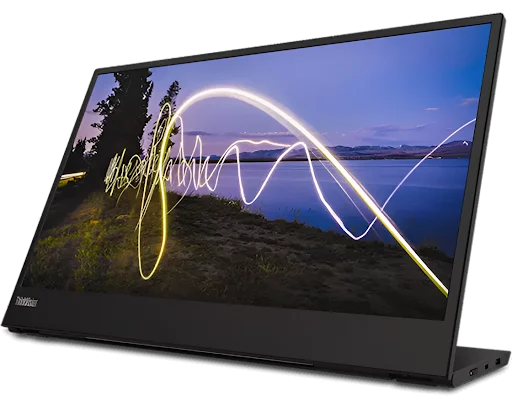

Portable monitors change the way you work on the go. These slim devices offer a second screen anywhere you sit. You might work at a coffee shop or a small hotel desk. An extra screen boosts your speed and focus. Carrying a monitor sounds hard, but modern tech makes it easy. Most screens fit right inside your laptop bag. They weigh very little and plug in with one single cable. You no longer need to toggle between tabs constantly.
Table Of Content
- 1. Pick the Right Port for Power
- 2. Master the Art of Alignment
- Optimize Your Digital Layout
- Adjust Scaling for Clear Text
- 3. Balance Your Brightness Levels
- 4. Protect the Panel During Travel
- 5. Use Portrait Mode for Coding
- 6. Manage Your Cables Like a Pro
- 7. Update Your Graphic Drivers
- 8. Set Up Custom Workspaces
- 9. Check the Refresh Rate
- Conclusion
This guide helps you master your mobile setup with ease. These tips ensure you get the most out of your purchase. Let us dive into the best ways to handle your portable display today.
1. Pick the Right Port for Power
Power matters most when you use a second screen. Most often, a portable computer monitor uses USB-C cables for high-efficiency power delivery and fast data transfer, enabling a clean single-cable setup without performance loss. You should check if your laptop port supports power delivery. Some ports only transfer data and will not light up the screen.
Using one cable keeps your desk clean and organized. You avoid a messy tangle of wires in public spaces. This simple connection makes setting up your office very fast.
2. Master the Art of Alignment
Your eyes need a break from constant shifting. Place your portable computer monitor at the same height as your laptop. Many people put the second screen too low or too high. This causes neck pain and slows down your reading speed. Use a small foldable stand to lift the display. Matching the top edges of both screens creates a seamless flow. Your mouse will move smoothly from one side to the other.
Optimize Your Digital Layout
You must tell the computer exactly where the monitor sits. Drag the screen icon in settings to match your physical desk. This prevents the mouse from getting stuck at the edges.
Adjust Scaling for Clear Text
Text might look tiny on a high-resolution portable screen. Go into display settings and increase the scaling percentage. A scale of 125 percent often works best for small monitors. This makes buttons easier to click and words easier to read.
3. Balance Your Brightness Levels
Mismatched brightness causes heavy eye strain over time. Your laptop might be very bright while the monitor stays dim. Always adjust both screens to look identical in the current light. Use the physical buttons on the side of your portable device. Lower brightness also saves your laptop battery life during long trips. Balanced light helps you stay focused on your tasks longer.
4. Protect the Panel During Travel
Screens break easily inside a cramped backpack or suitcase. A dedicated sleeve or a hard case provides vital protection. Never put heavy items on top of your monitor bag. Even a little pressure can crack the liquid crystal display. Most monitors come with a magnetic cover that acts as a stand. Ensure this cover stays closed when you move around. This keeps the glass safe from scratches and accidental drops.
5. Use Portrait Mode for Coding
Vertical screens offer a unique advantage for specific types of work. You need to turn your monitor 90 degrees to read extended documents and programming code. The current arrangement enables you to observe additional text content simultaneously. It is perfect for reading long emails or checking social media feeds. Most portable monitors have sensors to flip the image automatically. You can also change the orientation in your system display settings.
6. Manage Your Cables Like a Pro
Short cables prevent clutter on small tables in cafes. Buy a right-angle USB-C adapter to save even more space. This keeps the wire from sticking out of the side of the screen. It prevents people from bumping into your setup as they walk by. Tucking wires behind the screen makes your workspace look professional. A clean desk leads to a much clearer mind.
7. Update Your Graphic Drivers
Software runs the show behind the beautiful glass panel. Sometimes a monitor might flicker or refuse to turn on. This usually happens because of old or broken computer drivers. Visit your laptop manufacturer’s website to find the latest updates. Newer drivers often improve the color accuracy of your second screen. They also help the computer manage power more efficiently. Regular updates keep your mobile office running without any glitches.
8. Set Up Custom Workspaces
Different tasks require different window layouts for maximum output. Use built-in features like Snap Layouts on your computer. This allows you to lock apps into specific corners of the screen. Put your research on the portable monitor and your document on the laptop. The separation creates a system that enables your brain to sort various information types into different categories. The system prevents you from becoming sidetracked by new incoming messages or incoming email notifications.
9. Check the Refresh Rate
Smooth motion makes a big difference when you scroll through pages. Check your settings to ensure the monitor hits 60Hz or higher. Some monitors default to 30Hz to save power, which looks choppy. A higher refresh rate feels much more responsive to your touch. It reduces the lag between your mouse move and the screen. This small tweak makes your digital work feel more natural.
Conclusion
Mastering a portable computer monitor turns any location into a high-power office. You now know how to protect your gear and optimize your view. These simple steps eliminate the frustration of a small workspace. Using active habits keeps your focus sharp and your body comfortable. A second screen is not just a luxury for travelers anymore. It is a vital tool for anyone who values their time and energy. Start using these tips today to see an immediate boost in your daily output. Your mobile desk will finally feel like a professional home base.